
Documentation › Watching Videos
Volume and Sync
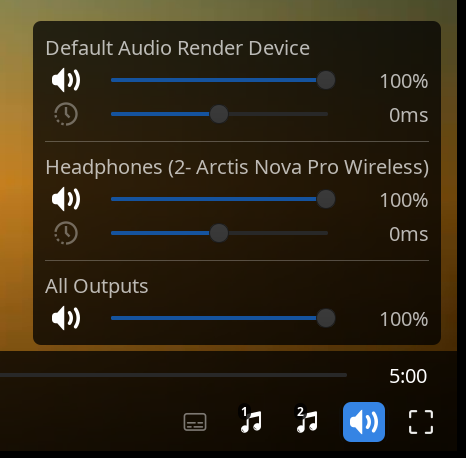
When selected, the volume button on the playback controls opens a control panel holding mute, volume, and sync settings for each output, as well as an overall volume and mute. While it is open the controls will not hide to allow for fine-tuning sync adjustments. The same levels are at Settings › Outputs, under Volume and Audio Sync for each output.
Volume
Each output has its own level and can be adjusted independently. The speaker icon beside each bar mutes that output on its own.
Sync
Bluetooth headphones and some speakers can have added latency and be out of sync by a fraction of a second. The Sync settings allows you to adjust the delay to bring them back in sync.
It can be adjusted live while watching a video to fine tune.
Clicking the sync icon next to the adjustment bar toggles the correction on and off without resetting the value.
Sync is saved with the device, not the video. Your headphones need the same correction whatever you are watching, so it is remembered with the output and applies to everything.
All Outputs
At the foot of the panel, a global volume control can be adjusted that applies to both outputs.
M, or holding the volume button down, silences and restores both outputs.
The volume and mute controls from a Jellyfin client will change this rather than either output.
Next: Keyboard and gamepad - control and navigation without a mouse.