
Documentation › Watching Videos
The Media Page
The media page displays all information and artwork about a particular video and lists all the choices for audio output and subtitles for playback.
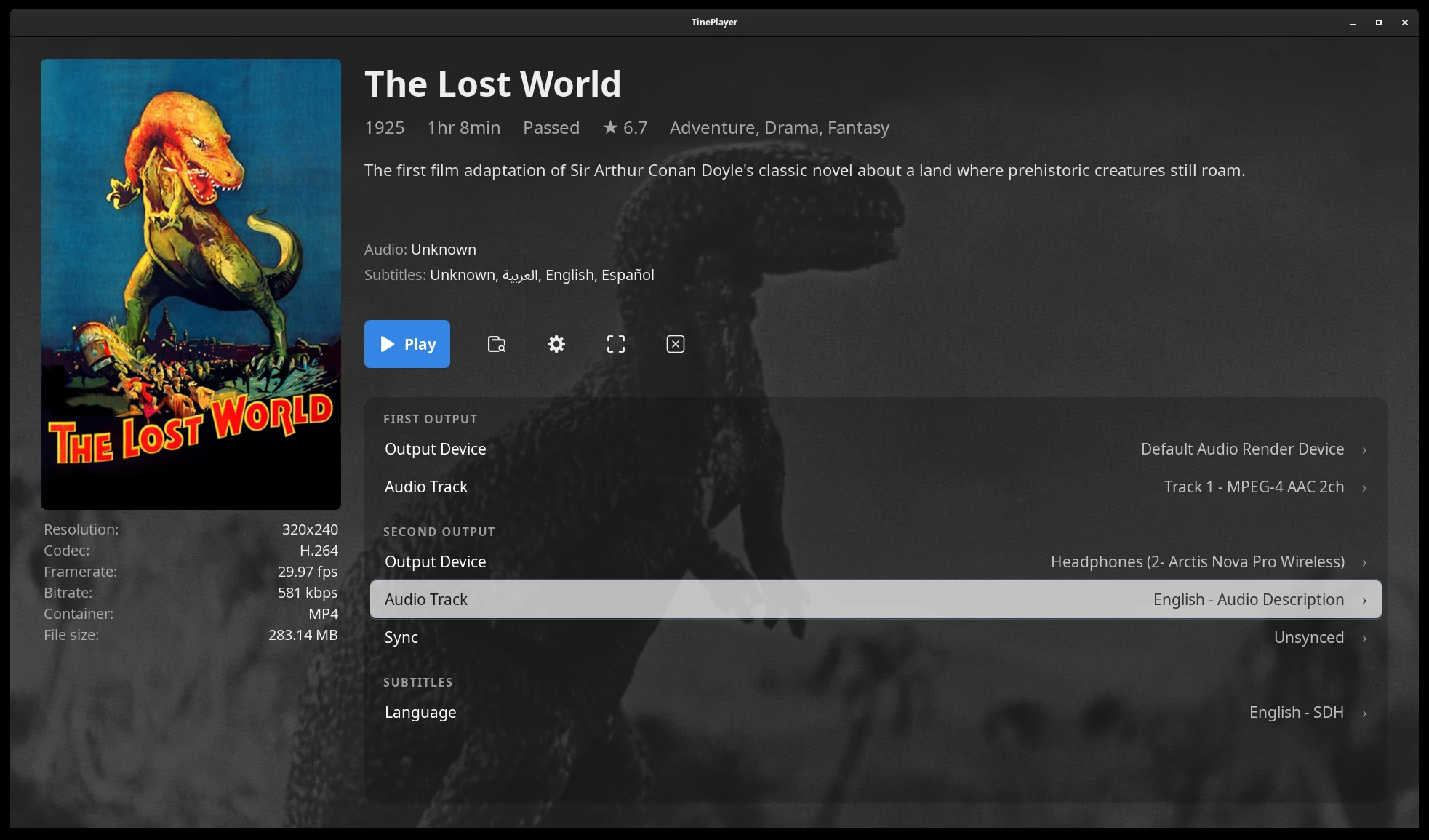
Video details and artwork
The media page can display a poster, a backdrop image, the title, year, running time, rating and summary, along with the technical details of the file: resolution, codec, frame rate, size, etc.
The data and artwork that is displayed comes from NFO and image files left next to your video by media library managers, or directly from Jellyfin when connected to a server. See Video details and artwork.
If there is no external metadata found, the page simply shows the filename and the details it can read out of the video file.
Audio and Subtitle Selection
Before starting playback, you can choose which audio track to output to which device and the subtitles to display.
| Group | Row | What it does |
|---|---|---|
| First Output Second Output |
Output Device | Which device this listener hears. See Output devices |
| Audio Track | Which track to output. See Audio tracks | |
| Sync | Only for an external audio file. See Syncing an external track | |
| Subtitles | Language | Which subtitles, if any. See Choosing subtitles |
The buttons
Play starts the video. For videos you have started watching, a Resume and Restart button will be shown instead.
Beside the Play buttons are options to open the file browser to choose another video, go to the settings screen, toggle fullscreen, and exit TinePlayer.
Next: Output devices - how to split the audio tracks.