
Documentation › Integrations
Jellyfin
Jellyfin is a free software media server that catalogs your films and TV shows and streams them over your network. TinePlayer connects to it as a cast target. Once connected it appears as a player in the Jellyfin app on a phone, tablet, or browser. When a video is cast from Jellyfin, TinePlayer will display its media page to allow soundtrack and subtitle choices before playing.
Connecting
- Open Settings, then Jellyfin.
-
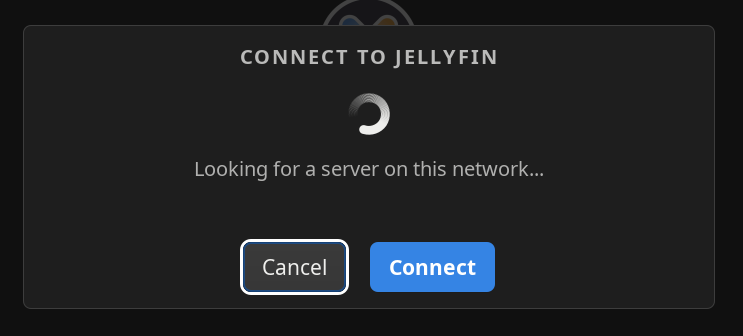
Press Connect to Jellyfin. TinePlayer looks for servers on your local network
and will fill in the address if it finds one. If none were found, enter the address to the server you
want to connect to, for example:
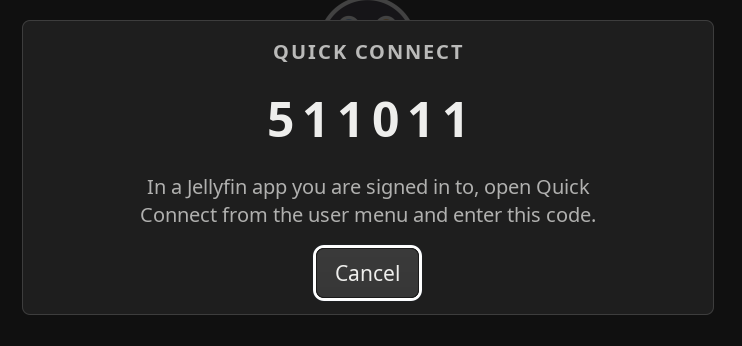
http://jellyfin.local:8096. - Press Connect. You will be shown a 6 character Quick Connect code.
- In a Jellyfin client or web browser where you are already signed in to the same server, open Quick Connect from the user menu and enter that code.
Once connected, TinePlayer appears as a player in the Jellyfin client whenever it is running.
Remote Control
Once a video is casting, a Jellyfin client can work as a remote control to TinePlayer through its own playback controls:
| In the app | What TinePlayer does |
|---|---|
| Play, pause | Pauses and resumes |
| Seek | Moves to that position |
| Stop | Ends playback and goes back to the media page. It does not close TinePlayer |
| Volume | Moves the All Outputs level, which governs both outputs together |
| Mute | Toggles the All Outputs mute |
| Audio track | Changes what the first output is playing. See below |
| Subtitles | Changes the subtitle track, or turns subtitles off |
Which Output Remote Control Affects
Jellyfin has one audio track for a video, because it expects a player with one output. TinePlayer has two. The track chosen in the app is applied to the first output, and the second is left alone. The second output settings can still be changed through TinePlayer's player controls.
Video, Soundtracks, and Subtitles
Videos are always played through direct stream and never transcoded, so every soundtrack and subtitle embedded in the video can be chosen by TinePlayer for playback on either output.
External audio files detected by Jellyfin are currently not supported because Jellyfin does not provide a way to stream these files without transcoding the video. As such, they are not listed as selectable tracks in TinePlayer. A local external audio file can still be played back in sync with a Jellyfin stream by selecting Browse... from the audio track menu.
External subtitle files detected by Jellyfin are supported and can be chosen for display in TinePlayer.
Playback positions are reported back to Jellyfin as the video plays, so a video started on TinePlayer can be resumed on another Jellyfin player, and vice versa.
Disconnecting
Settings, Jellyfin, then Disconnect. This removes the stored token from this machine and signs the device out of the server.
On the Jellyfin side, delete TinePlayer from your Devices list in the Dashboard.
Through Kodi Instead
Jellyfin videos can also be played by TinePlayer through Jellyfin for Kodi, with Kodi handing videos over as it does for any other file. Set the add-on's playback mode to Native (direct paths) if Kodi can reach the files directly, or leave it on Add-on.
Next: Kodi - handing playback to TinePlayer.