
Documentation › Settings
The Settings Screen
The settings screen can be opened from anywhere (except while playing a video) by clicking the gear icon or pressing Ctrl+,.
General
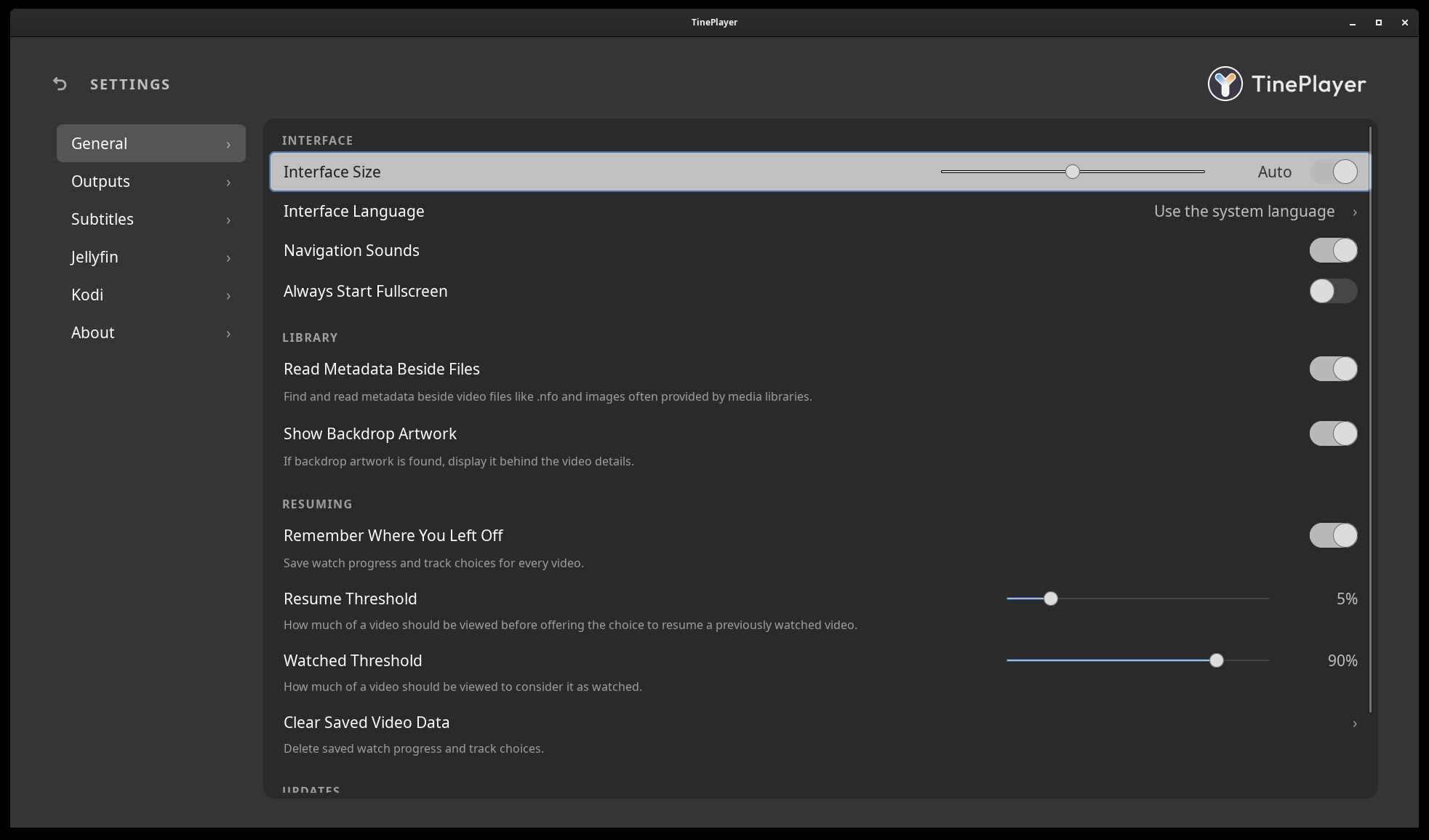
| Setting | What it does |
|---|---|
| Interface | |
| Interface Size | Sets the interface scale. Automatic will scale based on the resolution of the display and should look the same size on a 1080p, 4k, or any other resolution display. |
| Interface Language | The language that all menus and controls are displayed in. Contributions are welcome. |
| Navigation Sounds | Enable or disable the navigation click sound. |
| Always Start Fullscreen | Always launch TinePlayer into fullscreen mode when started. |
| Library | |
| Read Metadata Beside Files | Enables searching for and reading any NFO and image files next to video files. Metadata and images provided by Jellyfin will still be shown. |
| Show Backdrop Artwork | Display background artwork (if found) on the media page. If disabled it will instead just show a solid dark background. |
| Resuming | |
| Remember Where You Left Off | Save watch progress and track choices for every video, in positions.json. Turned off, nothing further is written and what is already saved is left alone. |
| Resume Threshold | Set at what view progress for a video you have to be before TinePlayer offers to resume it rather than starting from the beginning. Defaults to 5%. |
| Watched Threshold | Set what view progress counts as having watched the video. Defaults to 90%. |
| Clear Saved Video Data | Delete saved watch progress and track choices. Grayed out if there is nothing to delete. |
| Updates | |
| Check for updates | Automatically check for and alert about new versions of TinePlayer. Nothing will be downloaded or installed. The row underneath names the version you have, and the newer one where there is one. |
Outputs
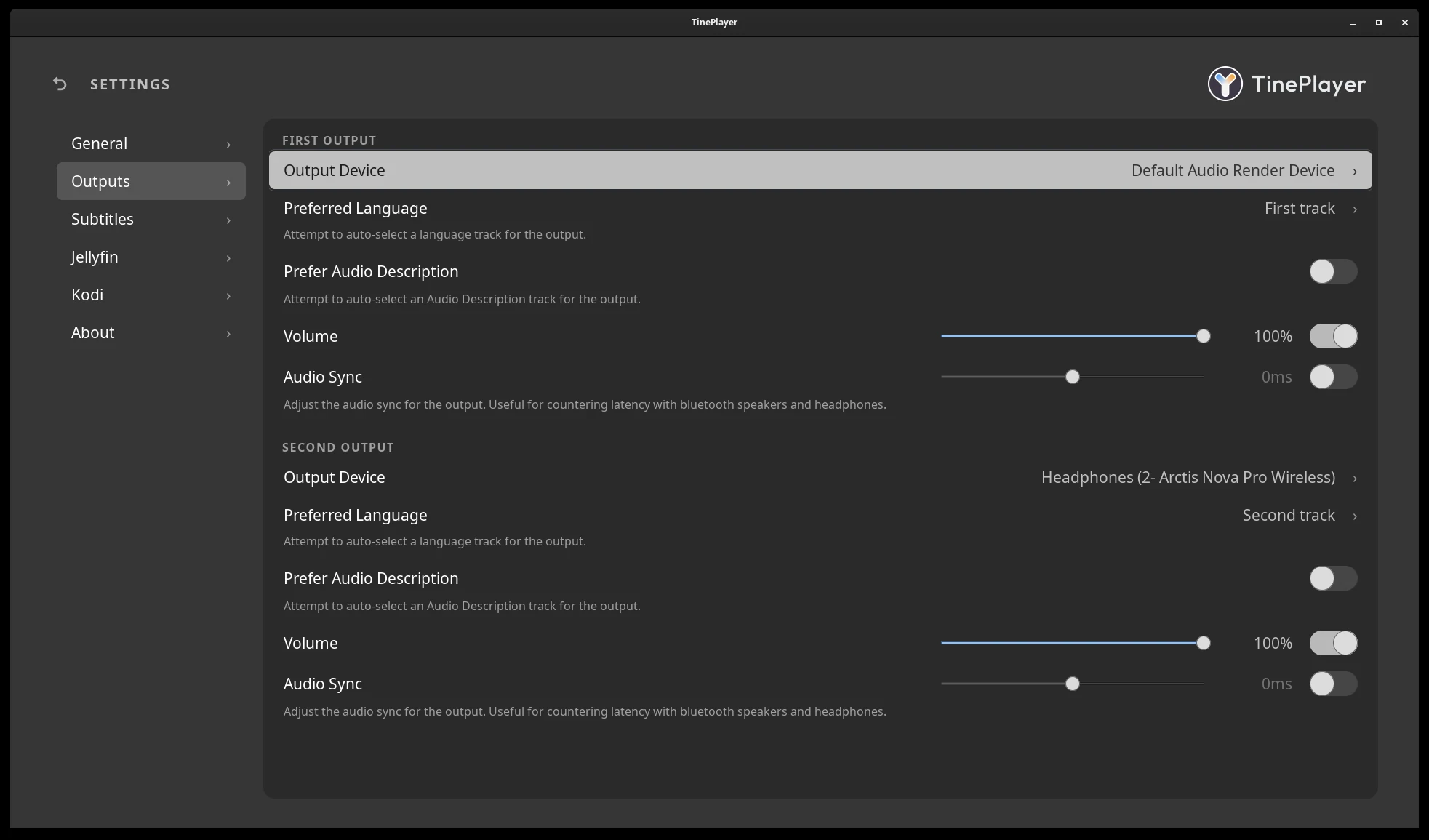
Each output (First and Second) have the same settings.
| Setting | What it does |
|---|---|
| Output Device | The audio device the output plays through, from any connected to the system. The second output can be set to None. See Output devices. |
| Preferred Language | The language to prefer for automatic track selection when opening a video for the first time. See Audio track preferences. |
| Prefer Audio Description | Whether to prefer audio description tracks for automatic track selection. See Audio description. |
| Volume | The volume level for the output, can also be adjusted during playback. |
| Audio Sync | Delay adjustment applied to this output. Useful for countering bluetooth latency or out of sync audio tracks. See Volume and sync. |
Subtitles
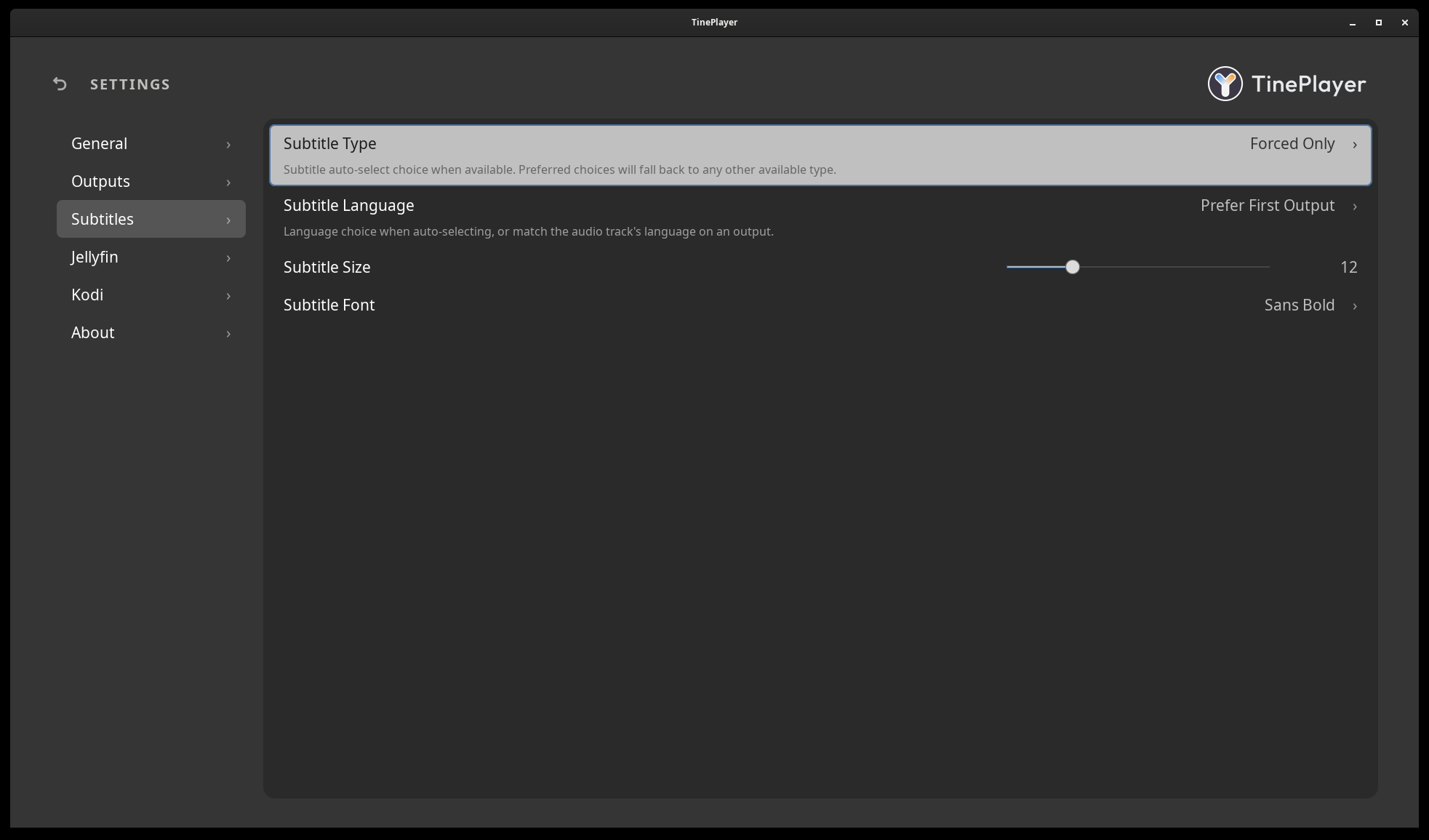
| Setting | What it does |
|---|---|
| Subtitle Type | Which subtitles to choose automatically: none, forced only, or a preference for forced, full or SDH. See Subtitle preferences. |
| Subtitle Language | Which language to choose subtitles in: an output's, or one particular language. See Subtitle preferences. |
| Subtitle Size | How large subtitles are drawn. Measured against the video resolution rather than the screen, so they stay a consistent size. |
| Subtitle Font | Sans, Serif or Monospace; regular or bold. See Subtitle size and font. |
Jellyfin
| Setting | What it does |
|---|---|
| Connect to Jellyfin | Find a Jellyfin server on your network or specify a remote address to connect using Quick Connect. See Jellyfin. |
Kodi
Kodi should be auto-detected and listed here if installed on the system. See Kodi.
| Setting | What it does |
|---|---|
| Configure As | Default Player sets Kodi to open every video in TinePlayer Additional Player adds TinePlayer as an additional player in a video's context menu under Play using... |
| When Kodi Opens TinePlayer | Show Track Selection Menu opens TinePlayer to the media page for to select output tracks. Play Video Immediately skips the media page and begins playback instantly. |
| Add User Data Folder | Configure a Kodi installation that was not auto-discovered. |
Next: Config File - every setting in config.yaml.