
Documentation › Audio Tracks
Choosing Audio Tracks
An audio track can be either a soundtrack embedded in the video or an external audio file, and a separate one can be selected per output device.
Choosing a Track
Open the Audio Track row for either output on the media page. The list holds, in this order:
| Entry | What it plays |
|---|---|
| None | Nothing on that output |
| The video's own tracks | A soundtrack embedded in the video |
| Under AUDIO FILES | An external audio file found beside the video |
| Browse... | An external audio file from anywhere on your disk |
The track can also be changed for either output while the video is playing using the soundtrack buttons in the playback controls.
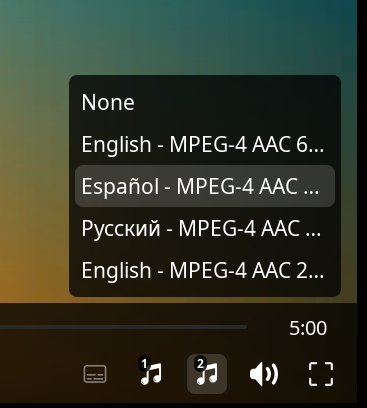
Your choices will be saved per video, if there are no previously saved choices a track will be auto-selected based on your preferences.
Embedded Tracks
In general, videos come with at least one soundtrack embedded inside the video file itself, but there can be many. Each is listed as up to three parts, with anything the file did not say left out: its language in its own words, then the format and how many channels, then what the track is for - Audio Description or Commentary - or the track's own title where the file gave one instead.
See Multi-track videos.
External Audio Files
An output can play a separate audio file from your disk instead of an embedded track, in sync with the video.
Audio description is a common use case, but it can also be used for dubs in another language, a commentary, or restored audio for an old film.
Next: External audio files - how they are found and named.