Screenshots
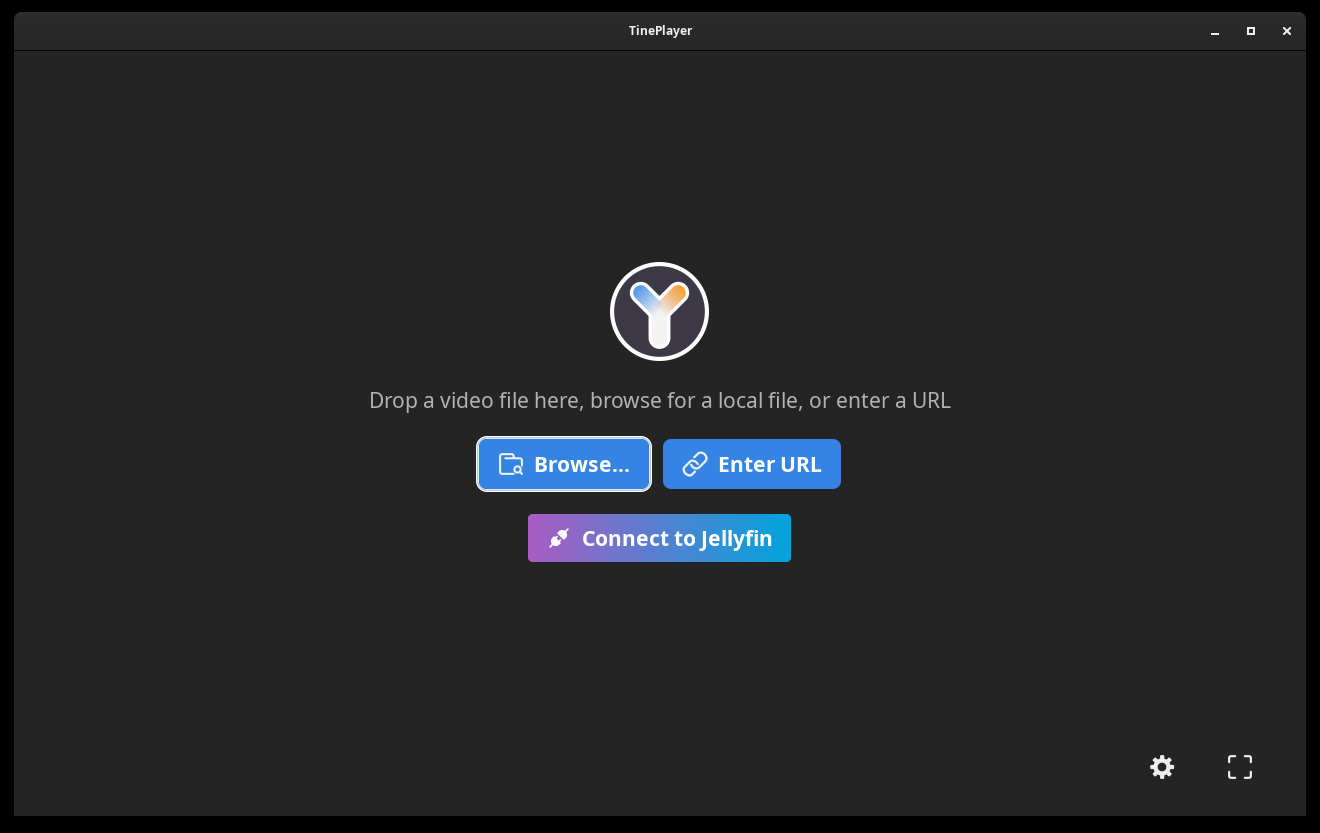
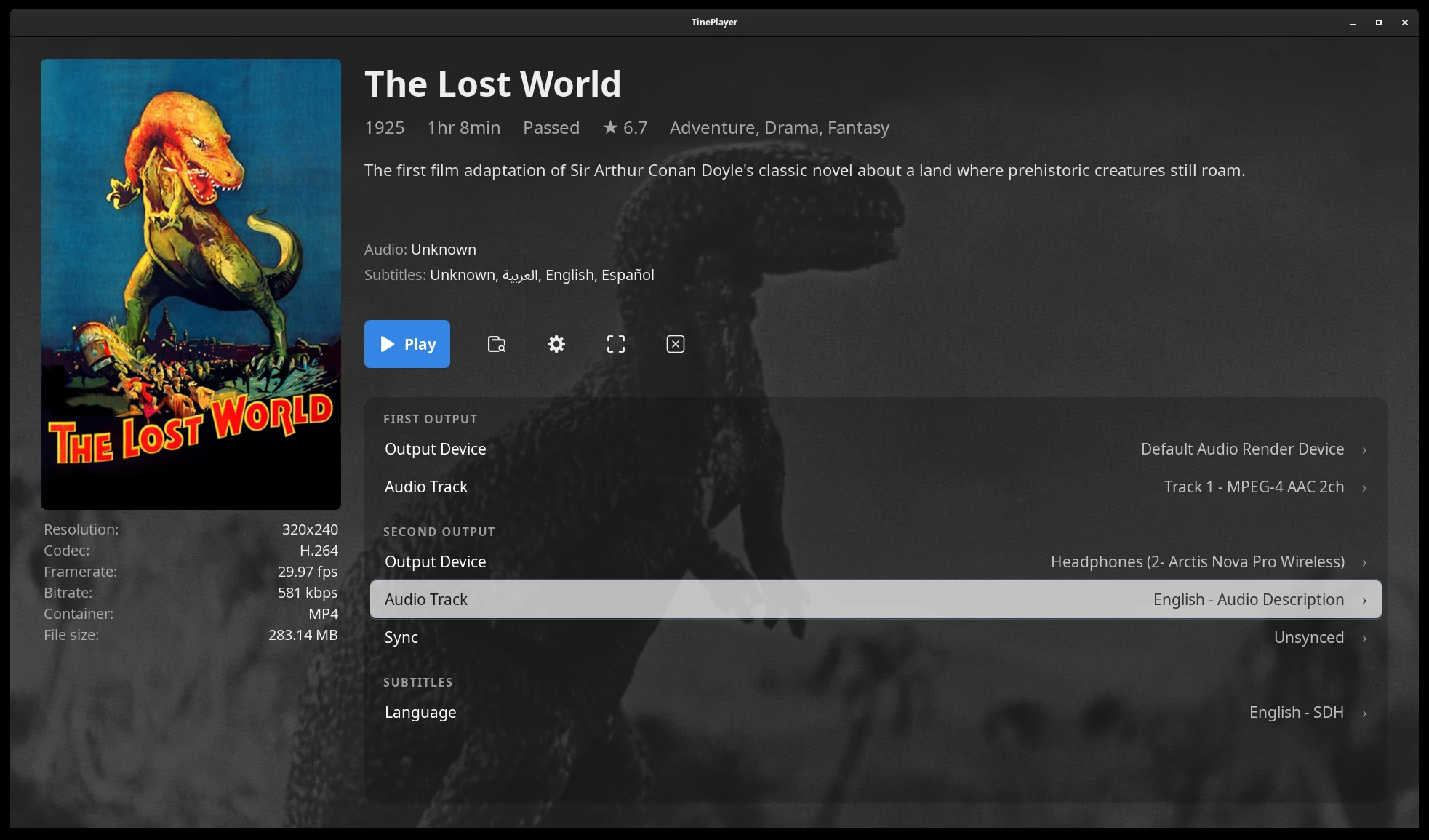
TinePlayer is built to be read from across a room, so everything's larger and plainer than a desktop application would be. These show opening a video, choosing what each output plays, the playback controls, and the settings. Choose any picture to see it full size.
Opening a video
-
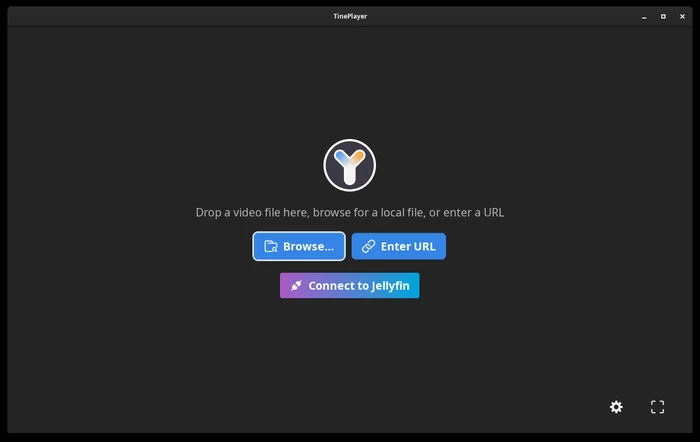
Starting up. Open a file, or paste in an address. -
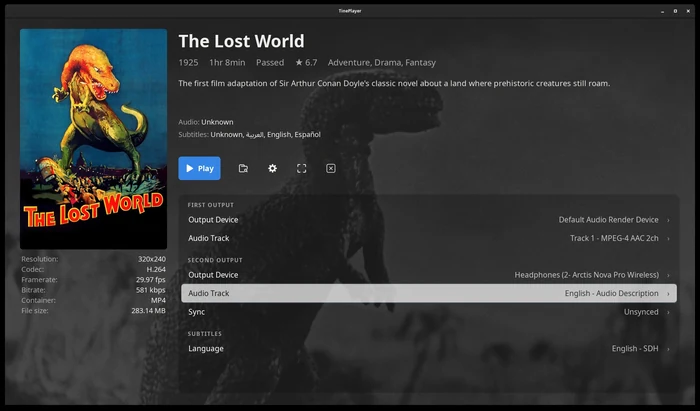
The media page. Everything about the video, and the tracks you choose before playing it. This example shows the film's own soundtrack to the speakers, its audio description to the headphones, and English SDH subtitles. -
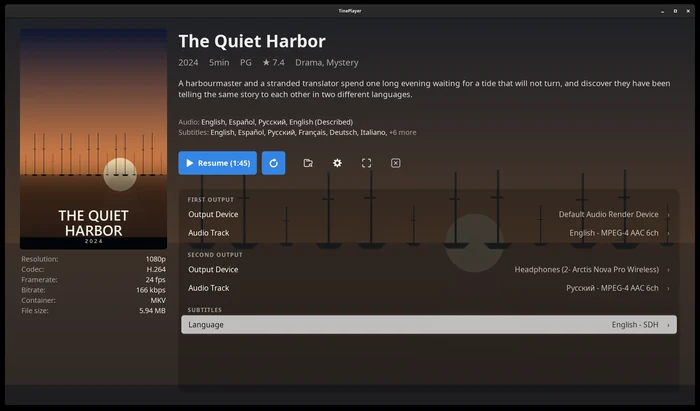
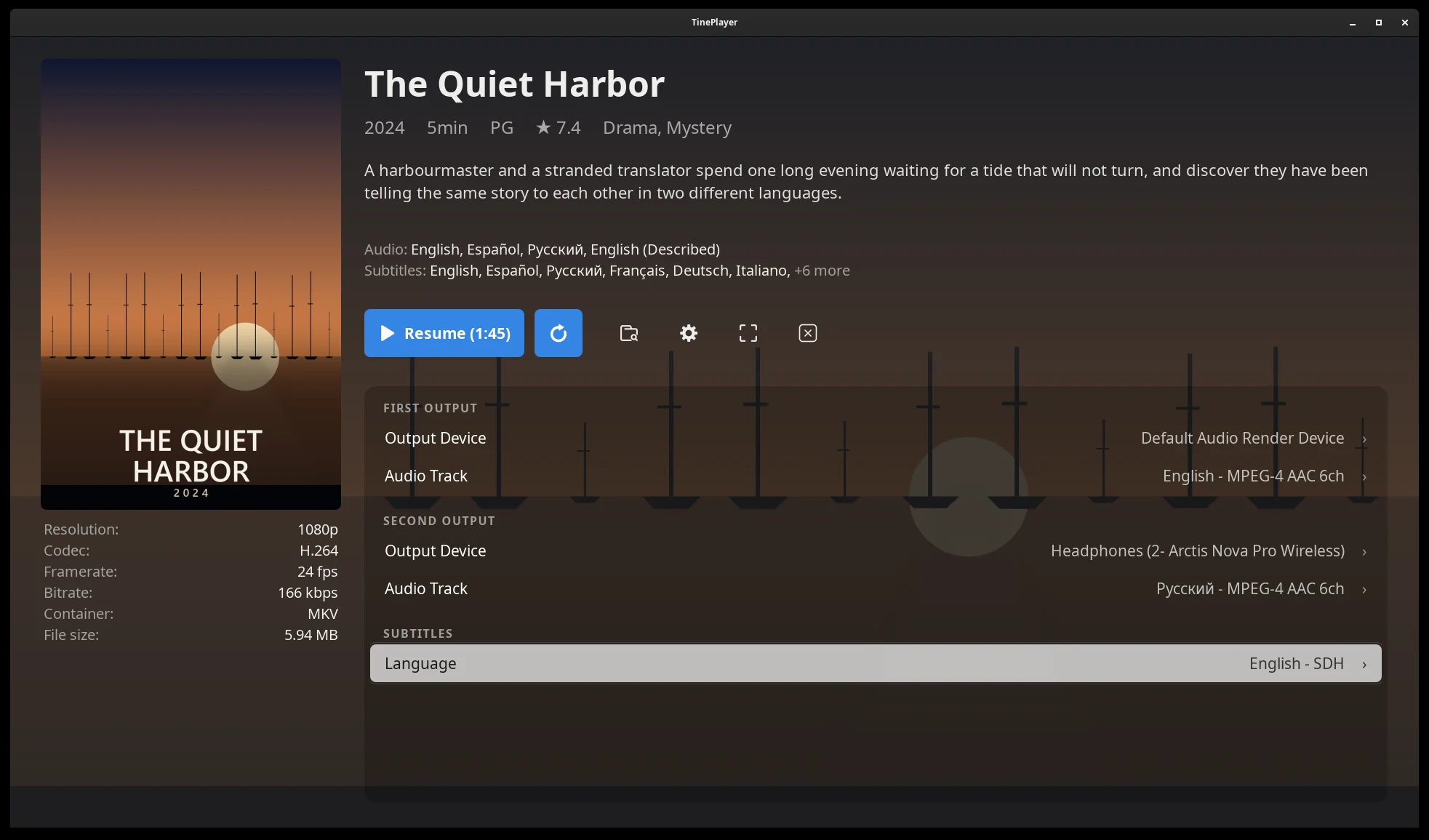
Picking up where you left off. A video you've already started reads Resume, with Restart next to it.
Playing
-
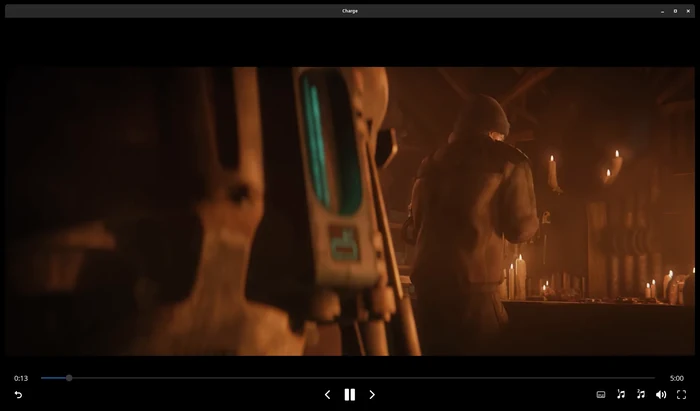
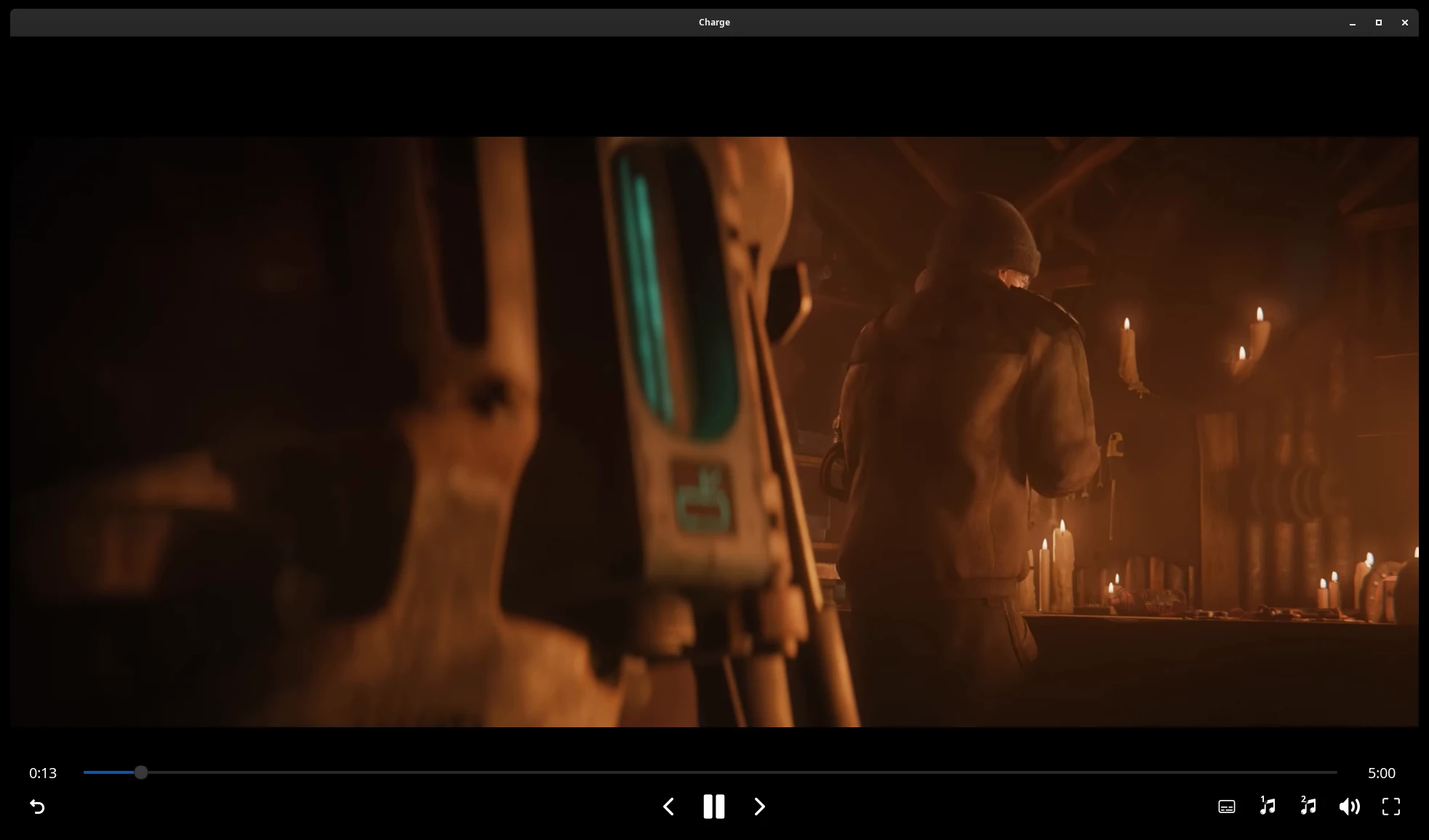
The playback controls. They hide themselves after a few seconds, and come back on any key or any movement. -
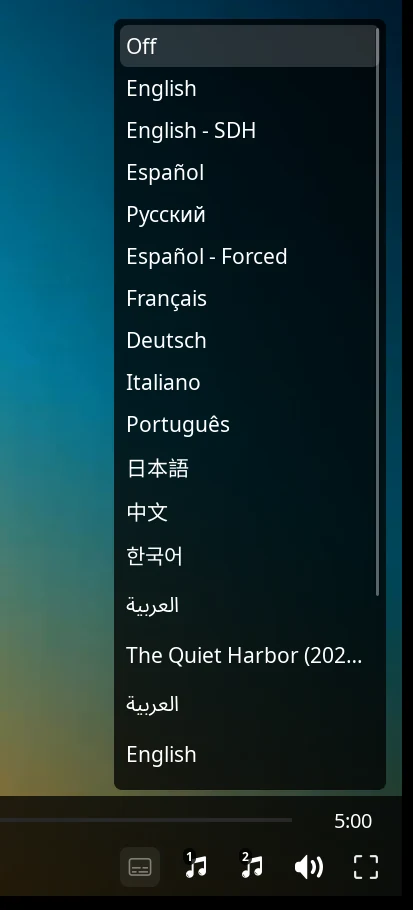
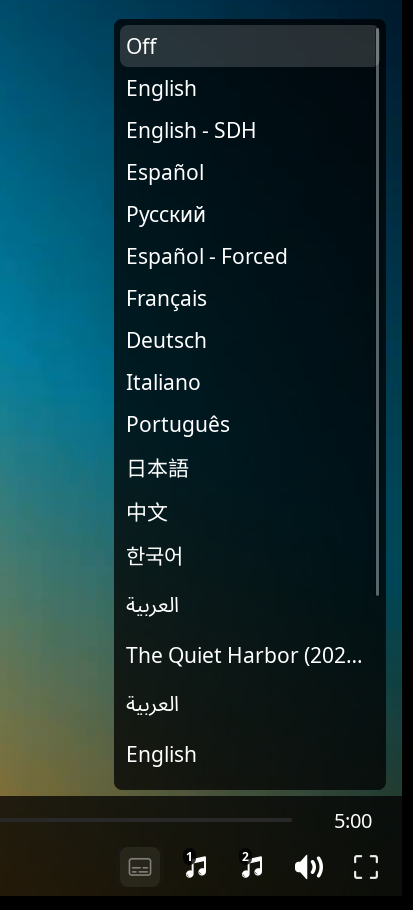
Subtitles, mid-film. Every track in the video and every subtitle file sitting beside it, without stopping. -
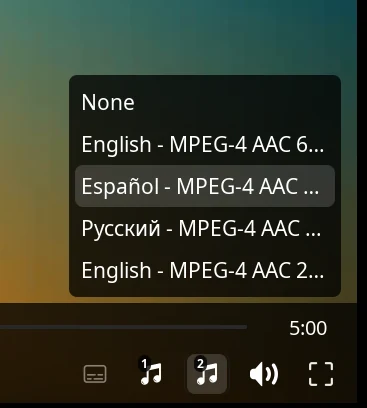
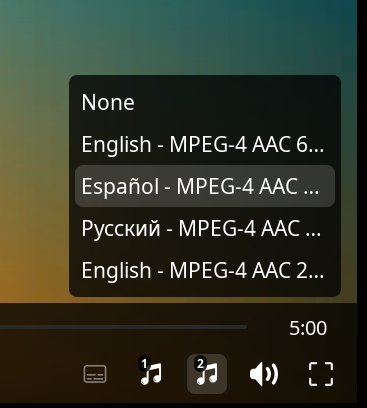
Either soundtrack, mid-film. One button per output, so one person's language can change without touching the other's. -
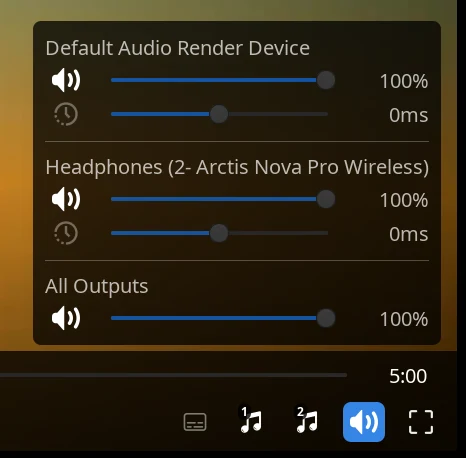
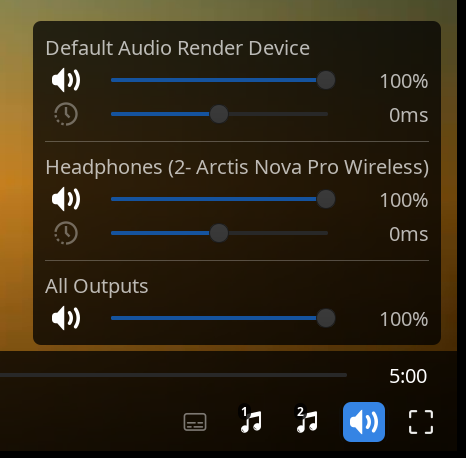
Volume and sync, for each output. A described or second-language track can sit at whatever level its listener wants, and wireless headphones can be adjusted to align sync with the picture.
Settings
-
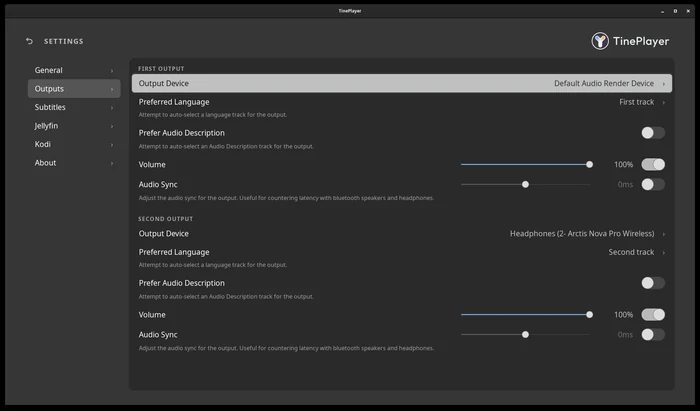
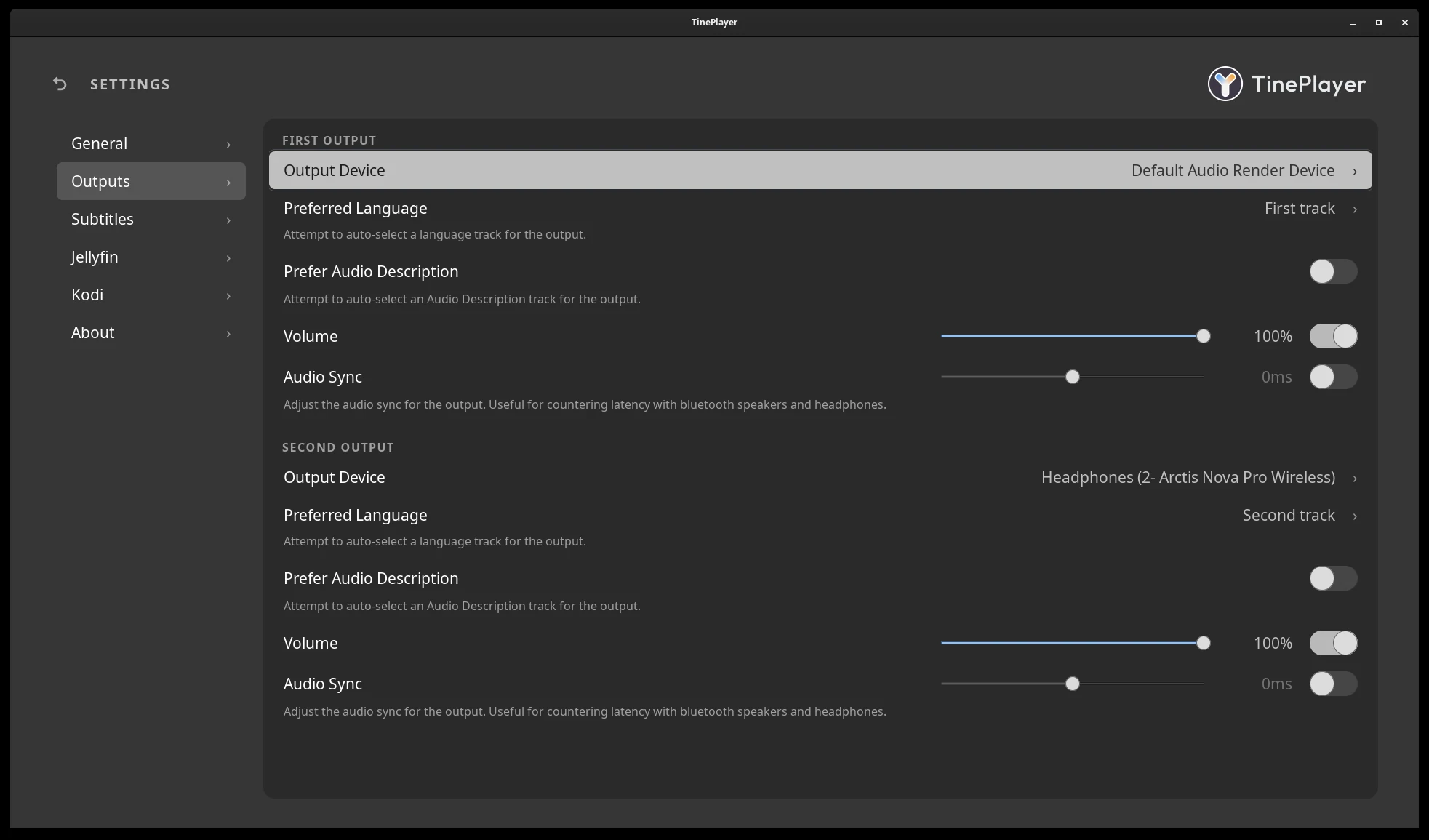
Outputs. Each one has its own preferences for auto-selecting tracks, as well as volume and sync settings. -
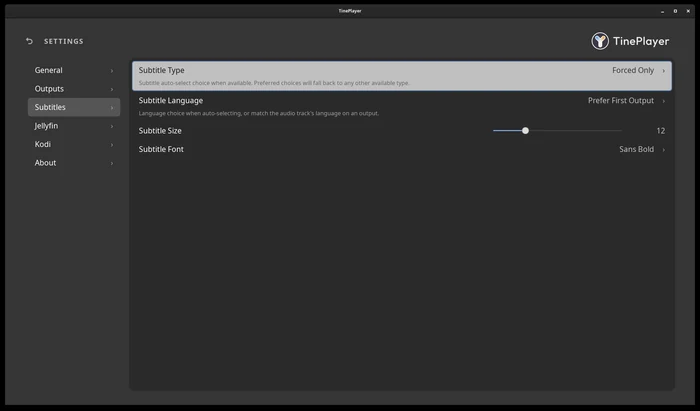
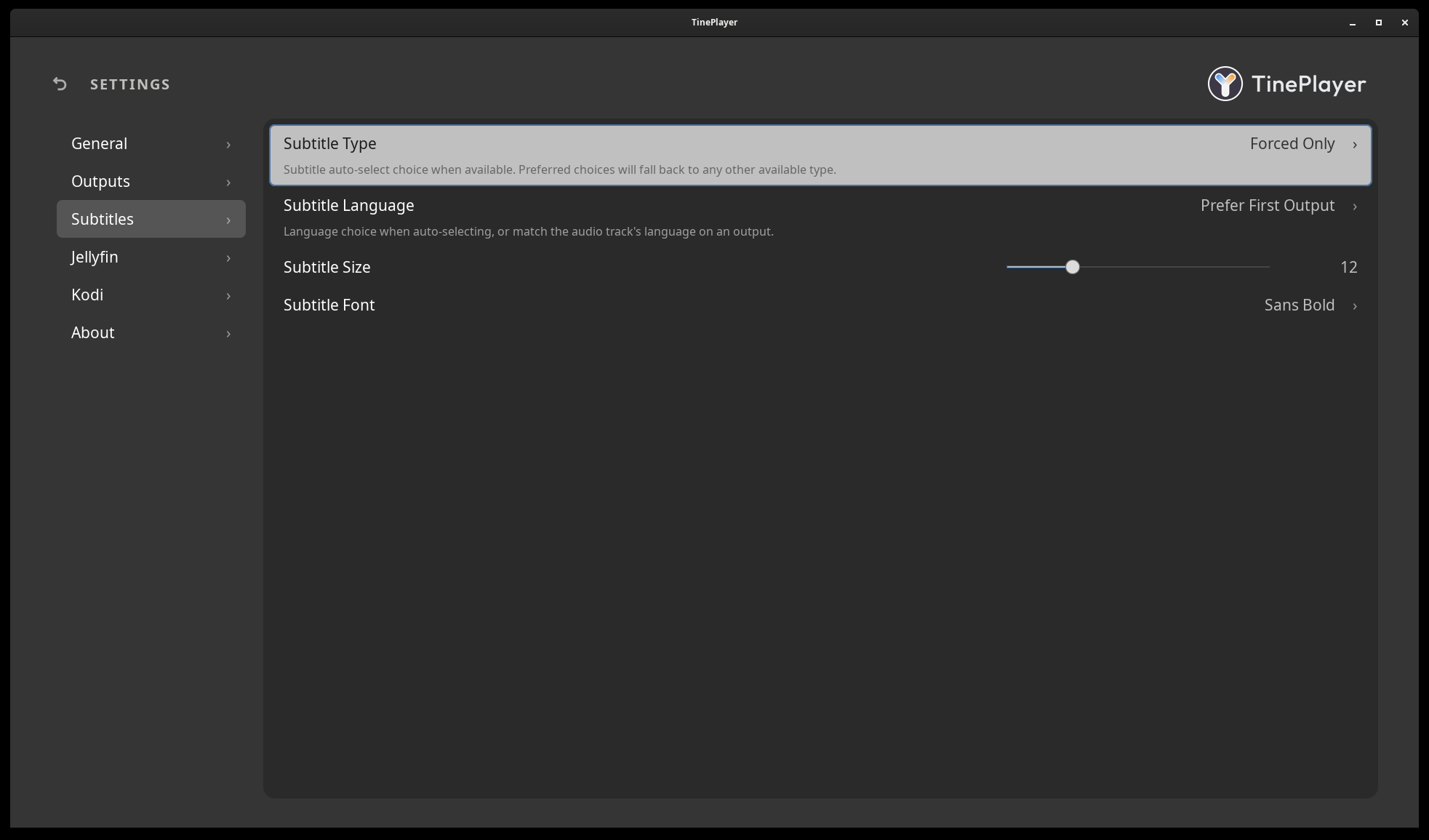
Subtitles. Which kind to choose, which language, and display settings. -
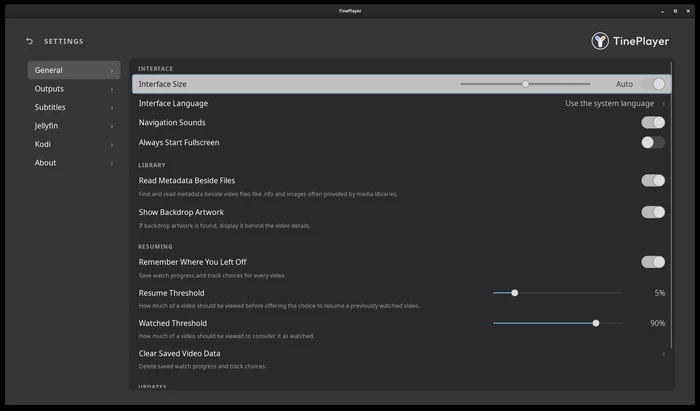
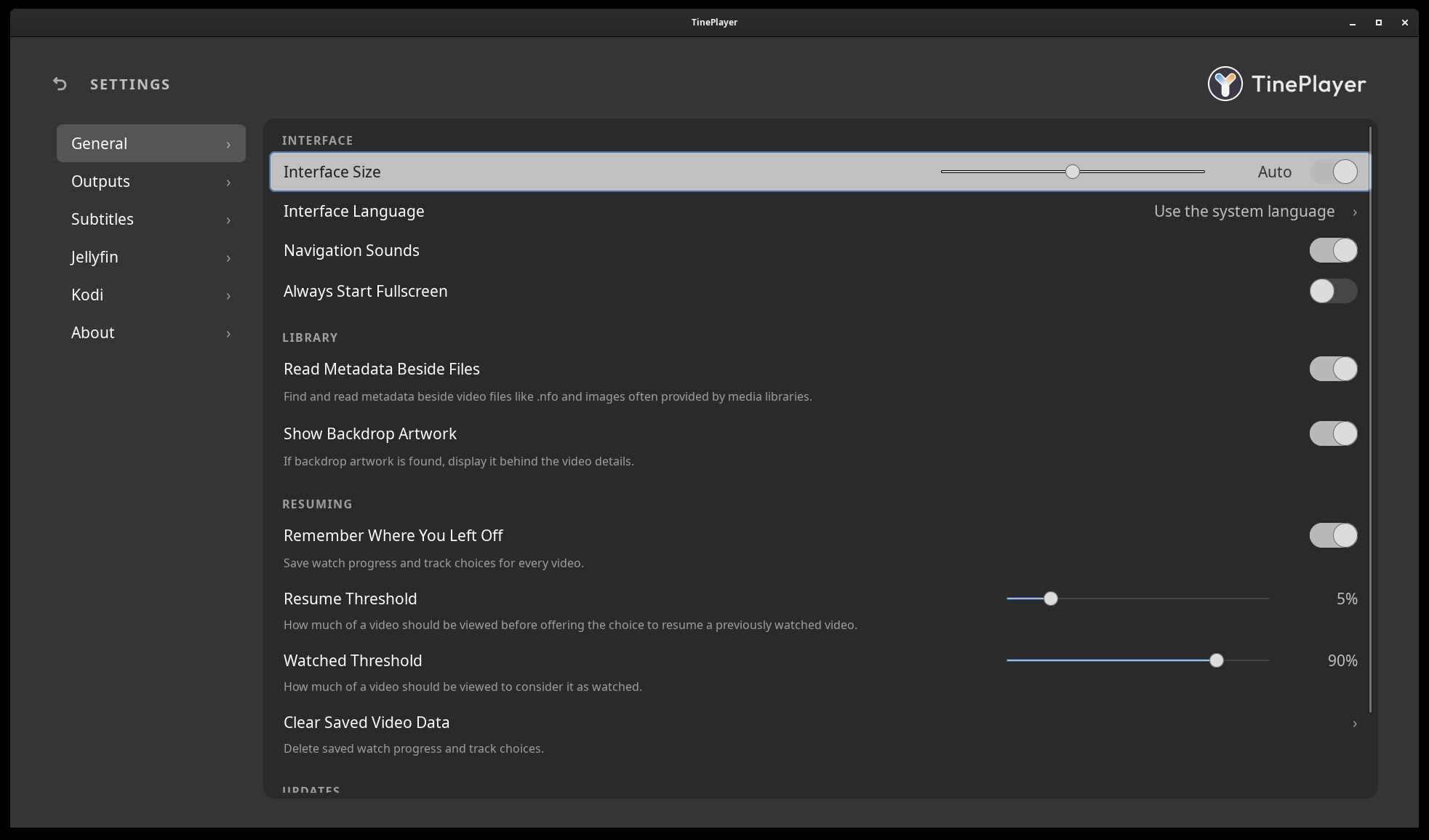
General. Grouped by category, with an interface size that goes up to three times normal for a television across the room. -
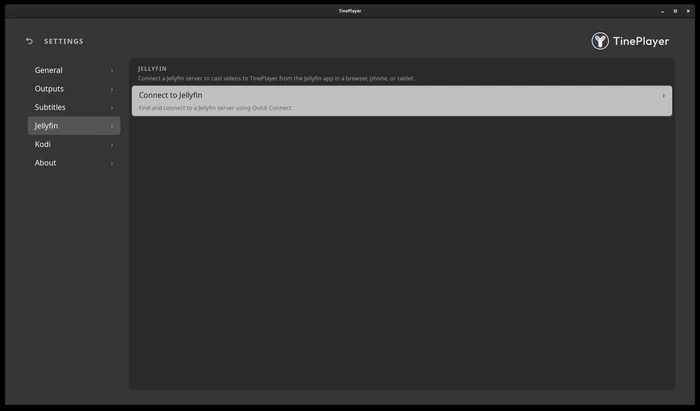
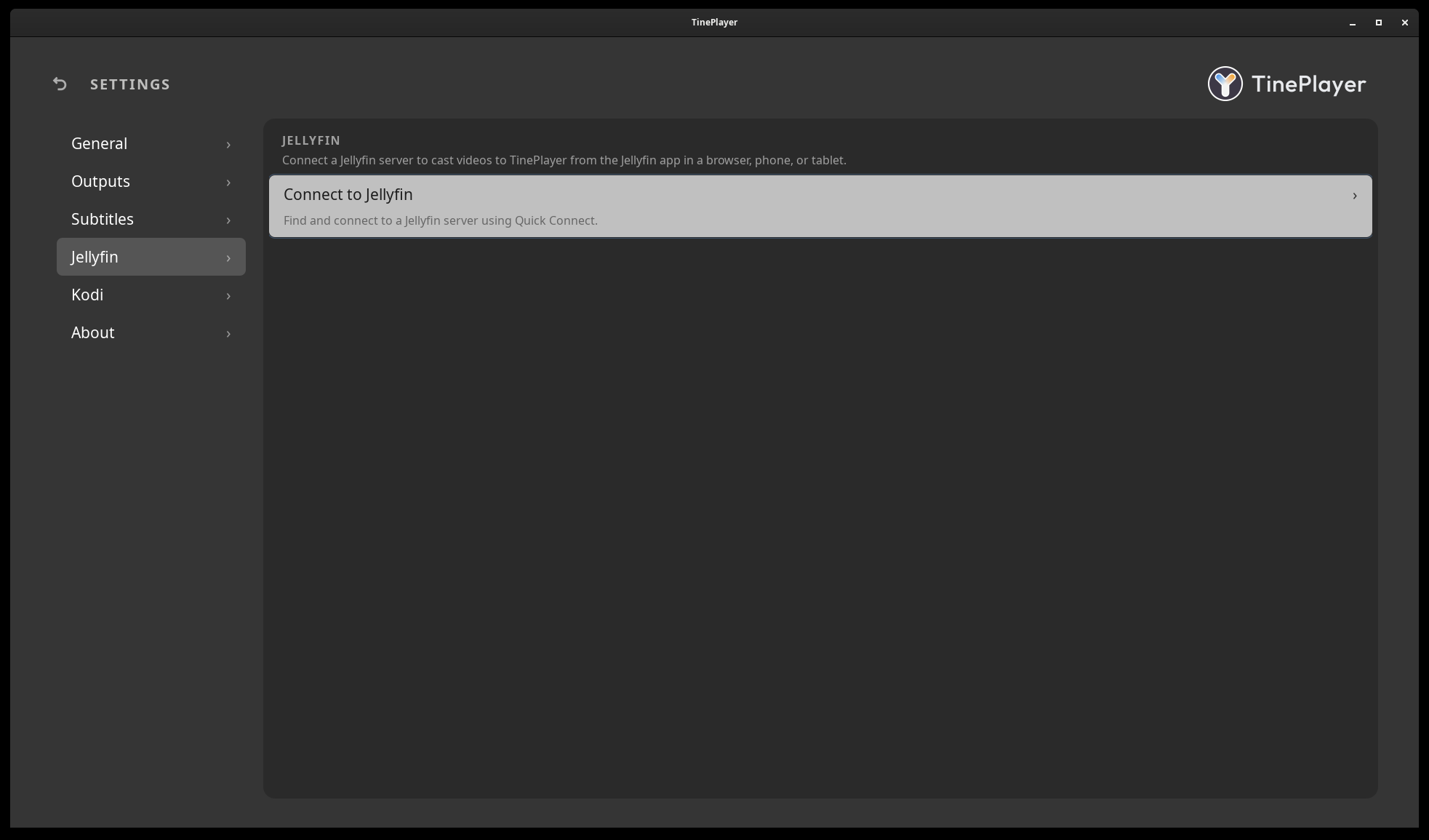
Jellyfin. Pair once with a Quick Connect code, and the server casts to TinePlayer from then on.
Using TinePlayer with Jellyfin -
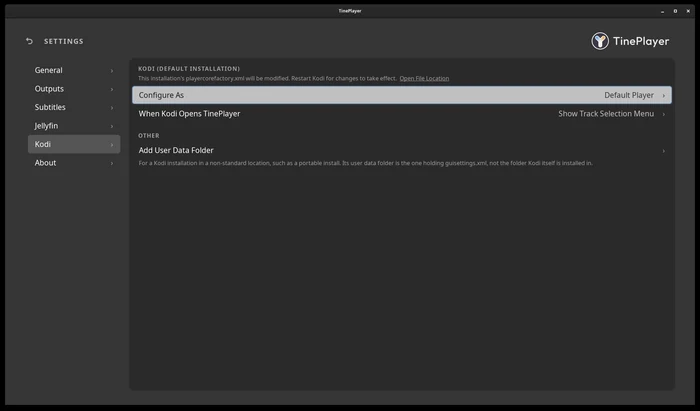
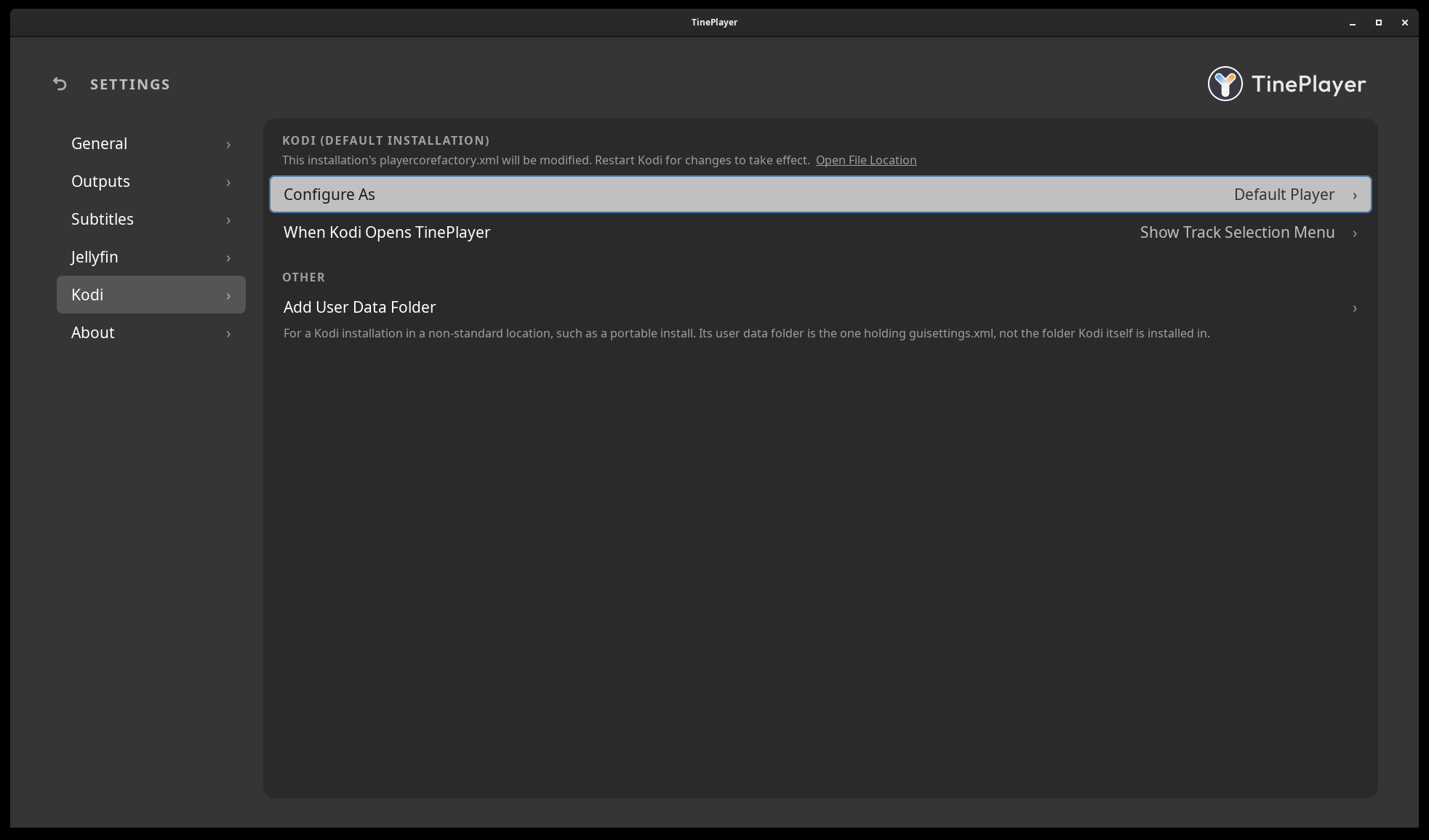
Kodi. Kodi integration settings.
Using TinePlayer with Kodi