
Documentation › Integrations
Using TinePlayer with Kodi
Kodi can hand a video to TinePlayer for playback as an external player. You keep Kodi's library, artwork, and remote, and gain TinePlayer's ability to play two soundtracks on two devices. TinePlayer reports watch progress back to Kodi, so Kodi stays up to date.
Setting It Up
Open Settings › Kodi in TinePlayer. If a Kodi installation is detected, it will be shown at the top of the list.
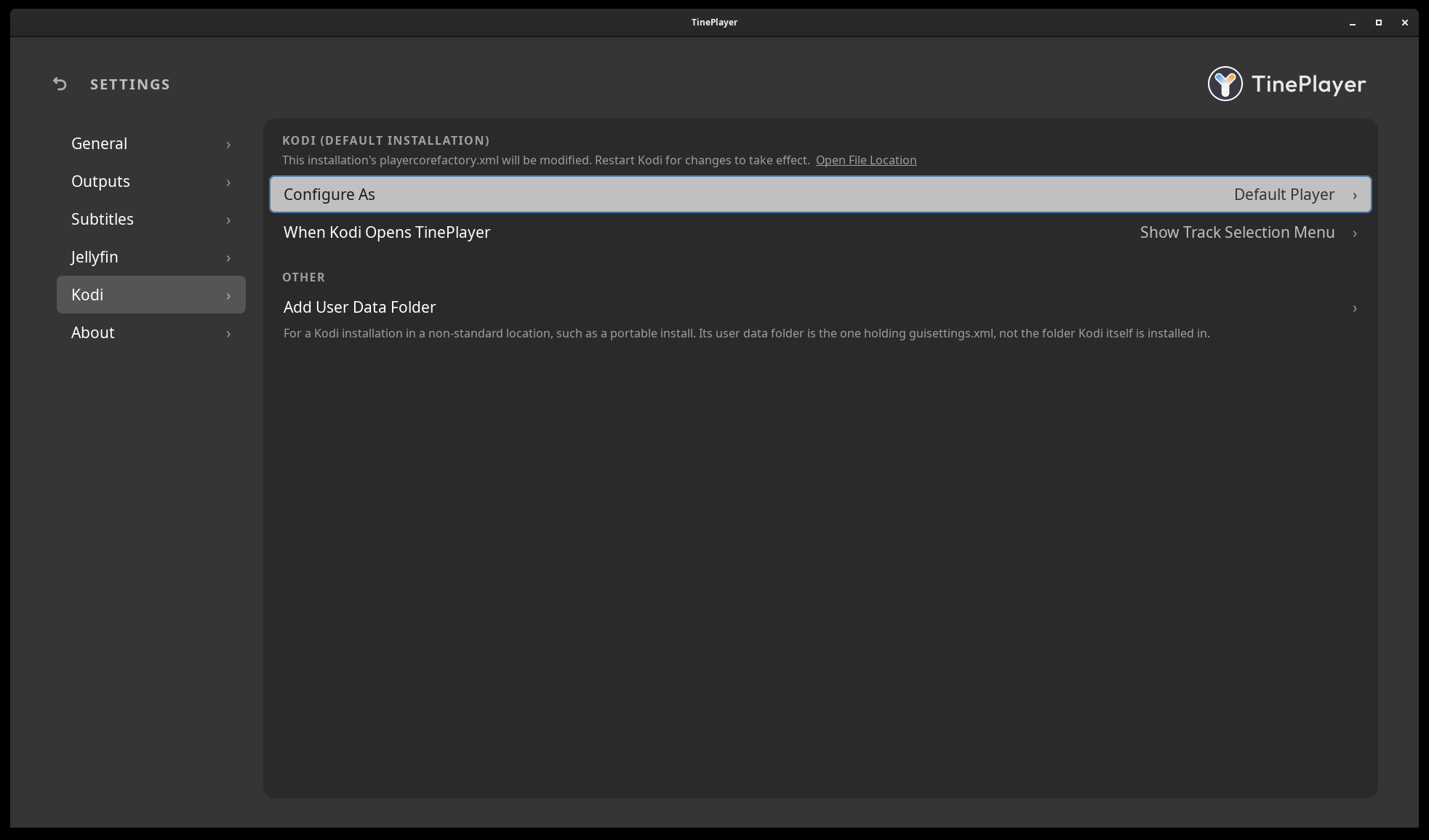
Set Configure As and When Kodi Opens TinePlayer:
Configure As
| Option | What it does |
|---|---|
| Default Player | Kodi hands playback of every video to TinePlayer automatically. |
| Additional Player | Kodi by default keeps playing videos itself, and TinePlayer appears under Play using... when you want it. |
When Kodi Opens TinePlayer
| Option | What it does |
|---|---|
| Show Track Selection Menu | Opens TinePlayer to the media page, so outputs, soundtracks, and subtitles can be chosen before playing. |
| Play Video Immediately | Skips the media page and starts playback at once. |
On first configuration, TinePlayer will confirm before it modifies Kodi's playercorefactory.xml file, and makes
a backup of that file. Restart Kodi after any configuration changes for them to take effect.
If Play Using... Does Not Appear
On Kodi 20 and earlier it only shows under Videos › Files, not in the Movies or TV Shows libraries. Kodi 21 and later show it throughout. Setting TinePlayer as the Default Player avoids the menu altogether.
Removing It
Select Configure As and choose Remove configuration.
TinePlayer's entry is removed from Kodi's playercorefactory.xml file.
Restart Kodi after any configuration changes for them to take effect.
If a Kodi Installation Was Not Found
Ensure Kodi has been run at least once before attempting to configure TinePlayer. Kodi needs to bootstrap its user data folder in order to be configured.
If it was still not found, select Add User Data Folder and find Kodi's user data folder.
This will be the folder containing guisettings.xml, usually in your user profile, not Kodi's
installation folder.
Linux Considerations
If Kodi was installed as a Flatpak on Linux it runs in its own sandbox from the rest of your system and cannot start TinePlayer without being allowed to. TinePlayer shows a Sandbox Permission setting with a terminal command to run. Granting it lets Kodi start anything on your machine, which is your decision to make and must be done manually.
If Kodi was installed as a Snap it cannot be used with TinePlayer at all. Snap gives it no way to start another program.
Next: Plex - through Kodi's add-on.